
The Workout Library
The Workout Library is where you browse, search and manage structured workouts. You can use official Stride workouts, community-created workouts, or build your own from scratch.
Browsing workouts#
Open the Workouts page from the main navigation to see the full library.
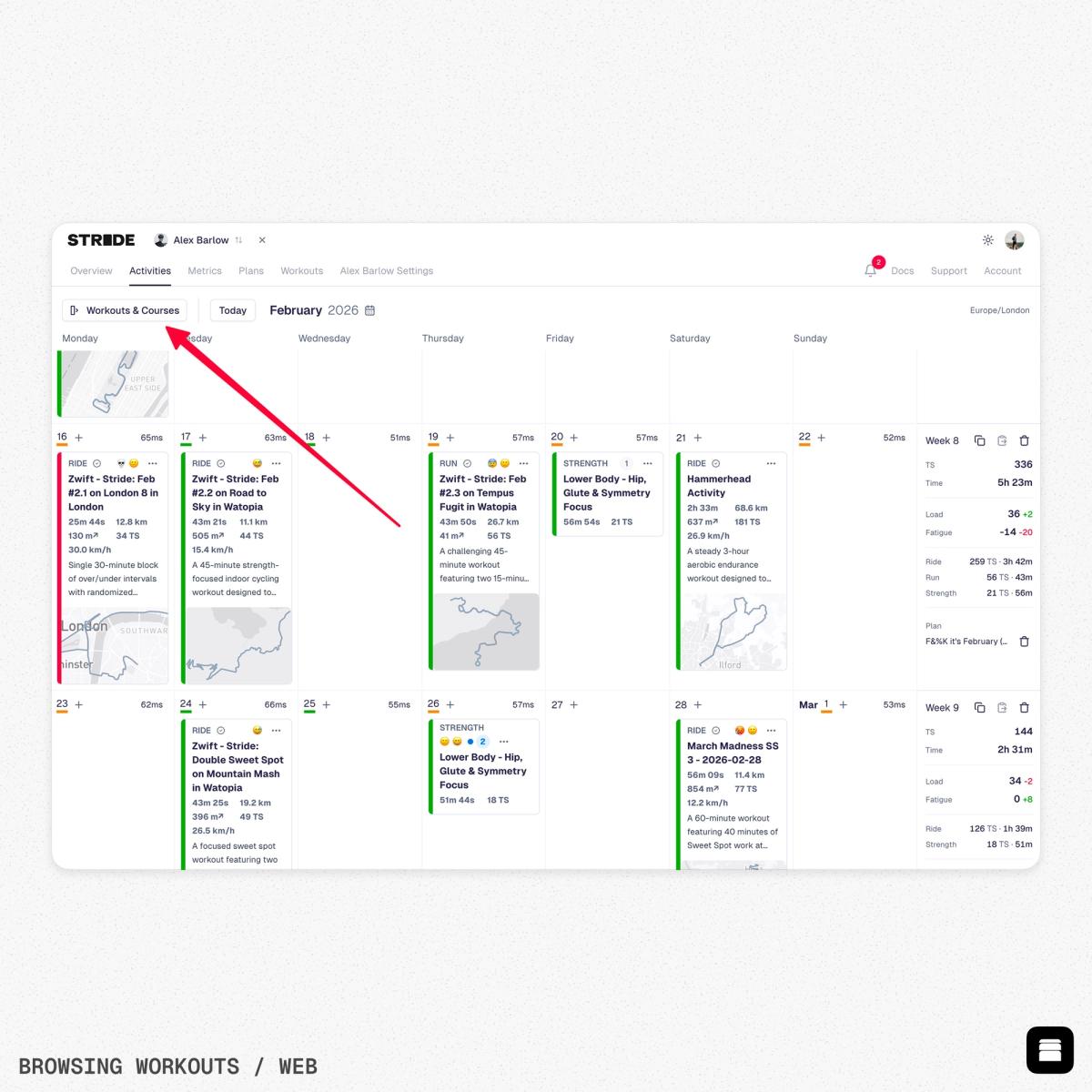
- Desktop: A resizable filter sidebar sits on the left, with the workout grid on the right.
- Mobile: Tap the filter icon to open filters in a slide-out panel.
Each workout card shows:
- Workout name
- Activity type badge (colour-coded by sport)
- Duration (e.g. 1h 30m)
- Training Score (TS)
- Intensity Factor (IF)
- Time Above FTP (TAF percentage)
- Tags as small badges
- Creator name and avatar, with a "(You)" label for your own workouts
- Stride Official badge for Stride-created workouts
- A mini power profile chart showing the workout structure at a glance
Filtering and searching#
Use the filter sidebar to narrow results. Filters are additive, so each one you apply further refines the list.
- Activity type: Ride, Run, Swim, Strength, Yoga, Walk, Hike, Ski
- Duration: Under 15m, 15-30m, 30-45m, 45m-1h, 1h-1h30m, 1h30m-2h, 2h+
- Tags: Search and select from dynamically loaded tags
- Source: Official (Stride) or Community
- Creator: Filter by yourself, specific team members, or admin teams
Use the search bar at the top to find workouts by name. Click Reset to clear all filters.
Workout structure#
A workout is made up of segments (intervals). Each segment defines:
- Duration in minutes or seconds
- Low target and high target power or pace (as % of FTP, absolute watts, or % of pace)
- Repeat count for interval repetitions
- Rest period between repeats
These segments combine to form the full workout profile. Stride automatically calculates the total duration, Training Score, Intensity Factor and Time Above FTP from the segments.
Creating a workout#
Click Create Workout in the top-right corner of the Workouts page.
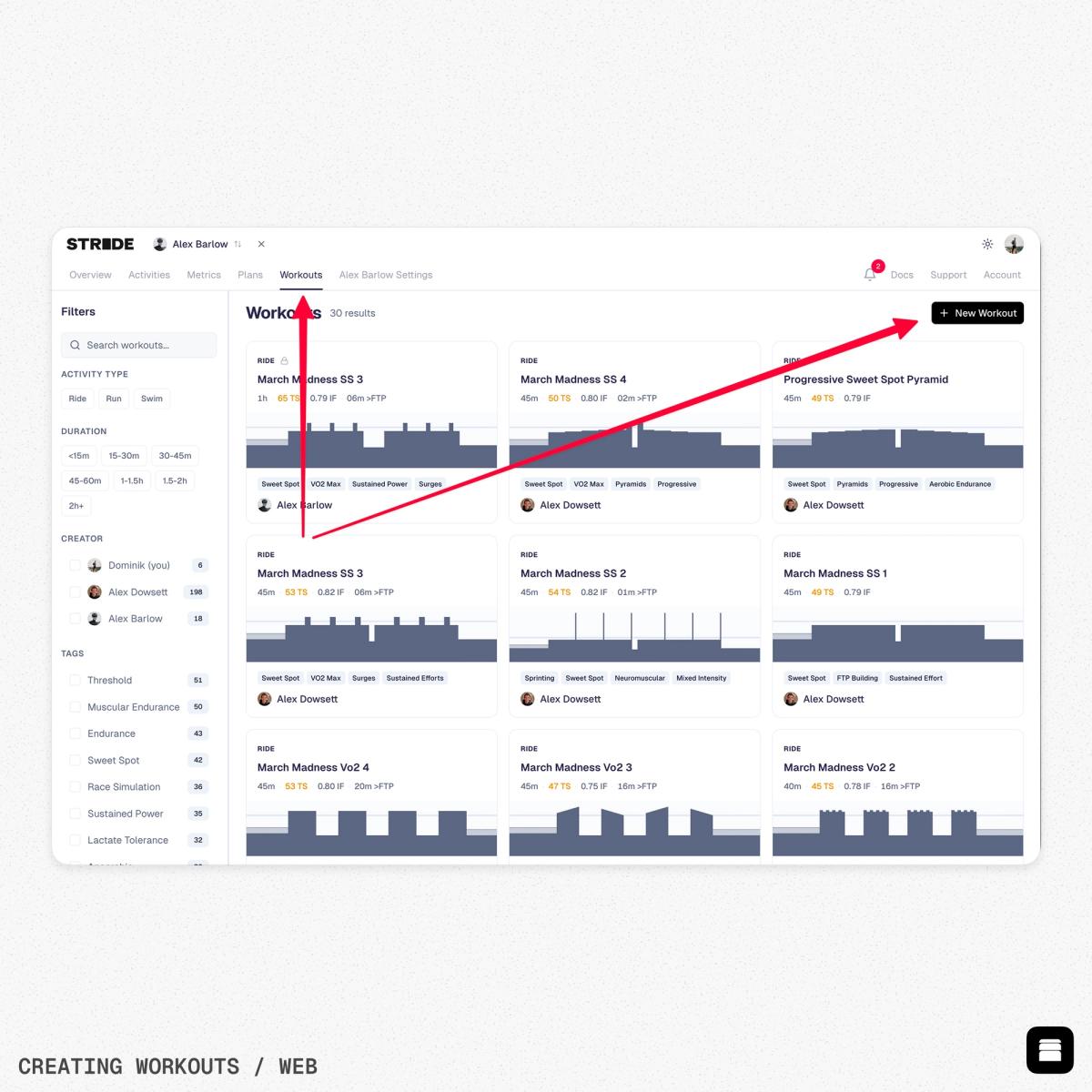
- Enter a workout name and optional description.
- Choose the activity type (Ride, Run, etc.).
- Select the base metric: FTP %, Watts, or Pace %.
- Build your workout by adding segments. For each segment, set the duration, target power/pace range and optional repeats.
- Drag segments to reorder them as needed.
- Add tags to help categorise the workout (type to search existing tags or create new ones).
- Toggle Public/Private to control whether the workout is visible to the community.
- Click Save to add it to your library.
The workout editor shows a live Training Score calculation as you build, so you can gauge the overall difficulty in real time.
Using Stride AI to create workouts#
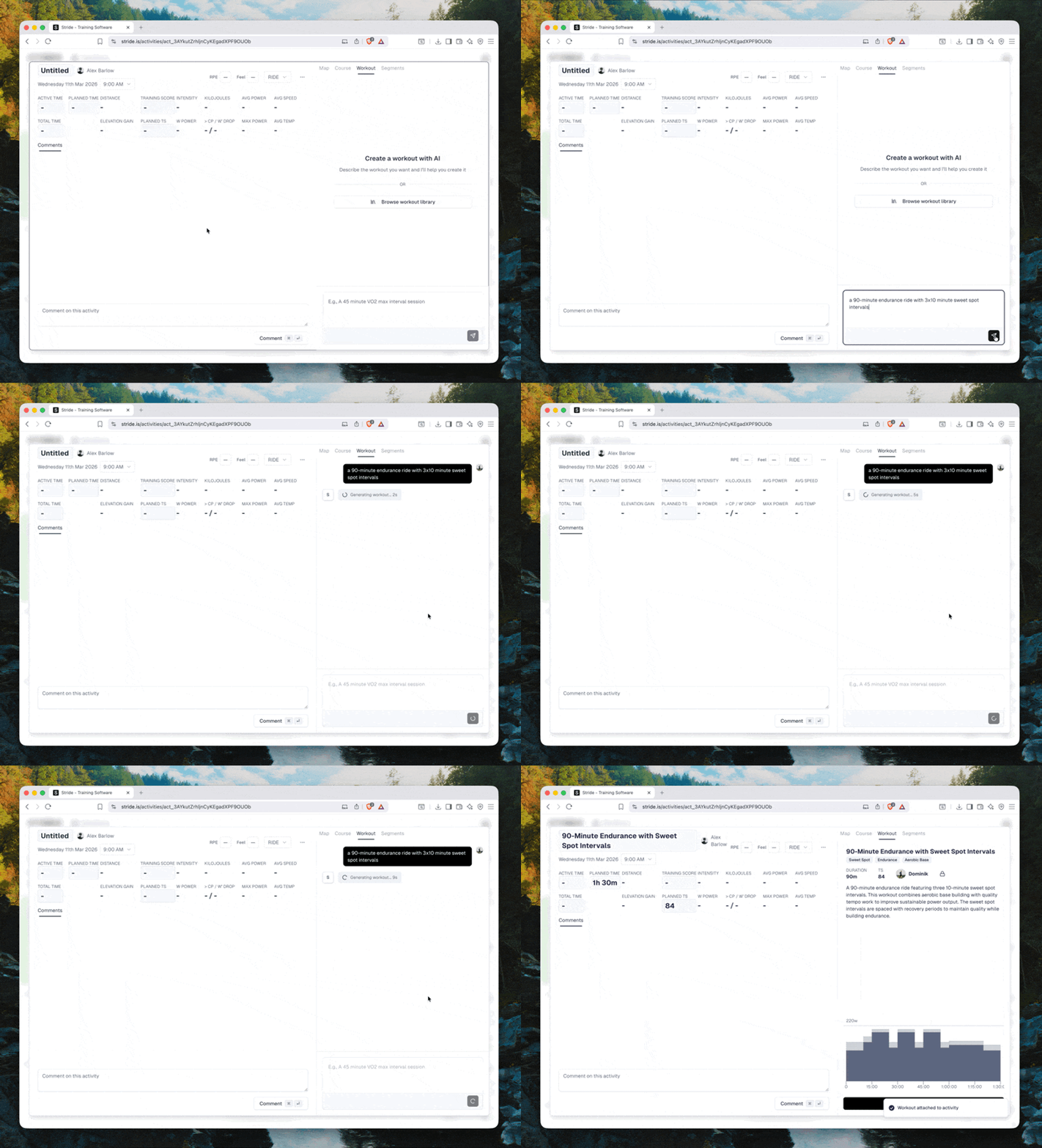
Instead of building segments manually, you can describe the workout you want and let Stride AI generate it for you.
- Open the AI generation dialog from the workout editor.
- Describe what you want (e.g. "a 90-minute endurance ride with 3x10 minute sweet spot intervals").
- Stride AI creates the full workout with optimised segments, name and description.
- Review and adjust the result before saving.
You can also use AI optimisation on existing workouts to improve the name and description.
Editing a workout#
Open any workout you created and click Edit to modify it. You can change the name, description, segments, tags and visibility. The same drag-and-drop segment builder is available as when creating.
Only the workout creator can edit a workout.
Scheduling a workout#
From any workout detail page, click Add to Calendar to schedule it on a specific date. Pick the target date and the workout appears as a planned session on your calendar, ready to follow when the day arrives.
Doing a workout#
Structured workouts can be completed in several ways:
- Ride it indoors with Stride's built-in workout player in the iPhone or Android app, which controls your smart trainer over Bluetooth and uploads the ride when you finish.
- Send scheduled cycling workouts directly to a connected platform or device, including Rouvy.
- Download cycling workouts as .zwo files for manual import into compatible platforms, including Zwift and TrainingPeaks Virtual.
Exporting a workout file (.zwo)#
Open any cycling workout and select Export to Zwift to download it as a .zwo file. You can manually import this file into compatible platforms, including Zwift and TrainingPeaks Virtual. Stride currently exports workouts in .zwo format. .erg and .fit workout export are not currently available.
Deleting a workout#
The workout creator can delete a workout from the detail page. Deleted workouts are removed from the library permanently.